
Browser wallet
The browser wallet has no profile chooser. Select a wallet to view its balance, activity, and votes.
Choose Explore IceRoot on the welcome screen for the sample walkthrough. Its transfers stay in the current session and are not broadcast.
Navigation
Section titled “Navigation”Use the sidebar—or the bottom navigation on a narrow screen—to move between Overview, Wallets, Send, Voting, and Settings.
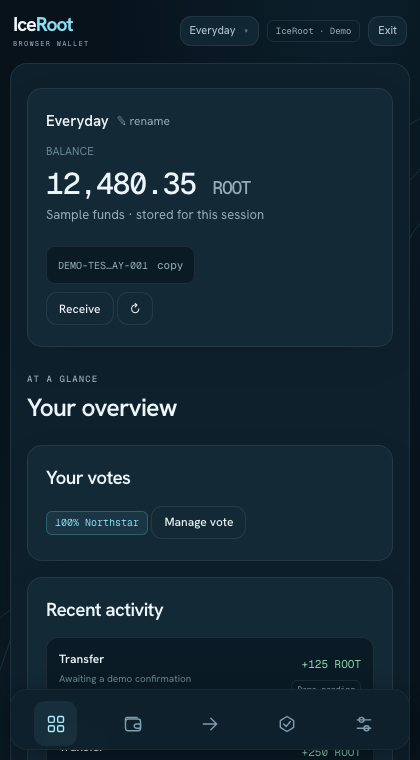
Select a wallet from the menu at the top. The overview follows that selection.
Change light or dark appearance in Settings. The background stays fixed.
Receive
Section titled “Receive”Select the destination wallet, then choose Receive. Check the full address and network before copying an address.
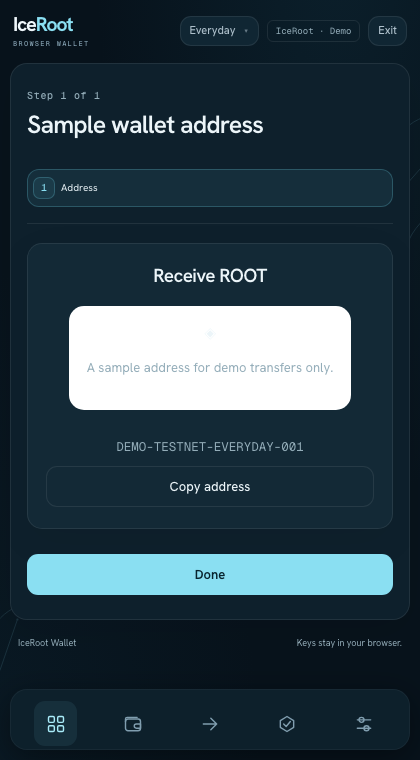
The sample receive page has no payment QR code. Its DEMO address cannot receive real funds.
Browser extension
Section titled “Browser extension”The Chromium extension opens in a full browser tab. Its toolbar button reuses an existing wallet tab when possible.
A website connection or signature request opens a review page. Check the requesting website, identity, network, and full message before approving. Each request needs its own approval.
Signing identity
Section titled “Signing identity”Open Settings → Manage signing identity to create or restore the Heartwood devnet identity used by the validator portal. It is separate from sample wallets and Solar compatibility accounts.
The identity locks when you reload, close its page, choose Lock, or leave it inactive for 10 minutes. Its recovery phrase belongs in the wallet; the portal only receives a public key and signature.
Storage and networks
Section titled “Storage and networks”The website and extension have separate storage. Wallets and signing identities do not synchronize automatically.
Solar compatibility is a separate mode using Solar addresses and SXP. It does not connect the IceRoot sample wallets to a live network.