
Mobile wallet
Android and iOS use the same wallet screens and review steps. Choose Explore demo to open the current sample wallets; no profile is required.
Open a wallet
Section titled “Open a wallet”The Wallet tab shows the selected wallet’s balance, assets, and send/receive actions. Use the wallet menu beside Your wallet to select another account.
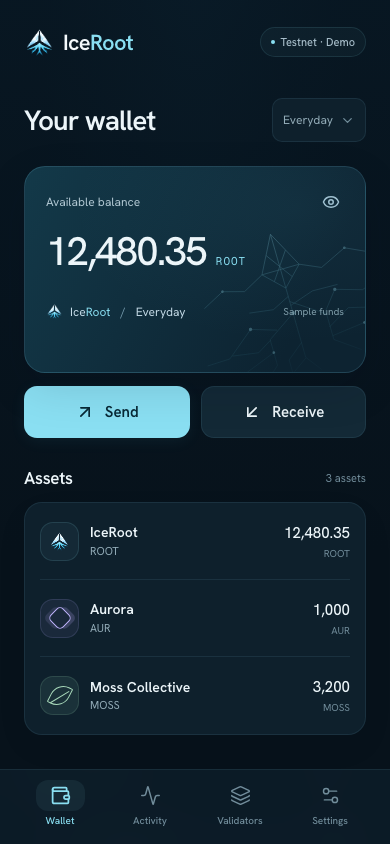
The wallet menu changes the account you are viewing. The bottom tabs stay within reach.
| Tab | What it shows |
|---|---|
| Wallet | Selected wallet, assets, and send/receive actions |
| Activity | Recent actions and their details |
| Validators | Validator information and voting actions |
| Settings | Appearance and display preferences |
Send or receive
Section titled “Send or receive”Choose Send to enter a recipient and amount, review the transfer, and read its result. Choose Receive to display the selected wallet’s address.
The current mobile walkthrough uses sample data. Receive addresses cannot receive real funds, and transfers are simulated for the current session.
Manage a vote
Section titled “Manage a vote”- Open Validators and select a validator.
- Choose the vote action, such as Change vote.
- Review the wallet, validator, network, and fee.
- Select Simulate vote to update the sample session.
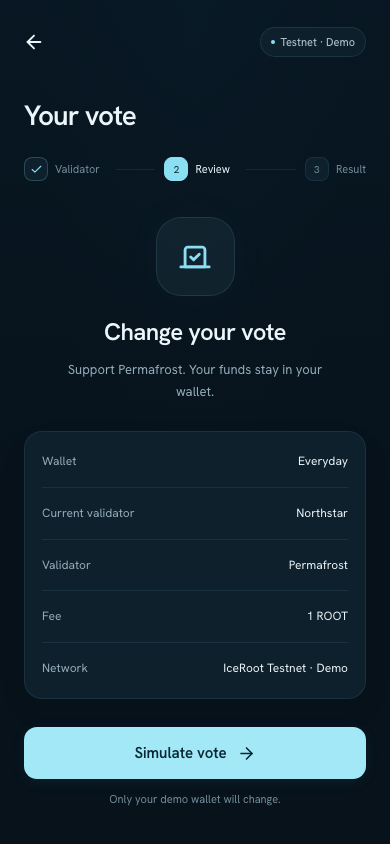
The review identifies the current validator and the proposed replacement before the vote changes.
To remove a vote, open your current validator and choose Remove vote. Review the removal before confirming it. Activity records the change.
Appearance
Section titled “Appearance”The app starts in dark mode. Choose light or dark in Settings. The roots background is fixed, and there are no separate user profiles.