
Sign in with your wallet
A signed login message proves control of a signing identity. It does not transfer funds, pay a fee, or register a validator.
Set up a signing identity
Section titled “Set up a signing identity”In the browser wallet, open Settings → Manage signing identity. Create or restore a Heartwood devnet identity, then keep its recovery phrase offline.
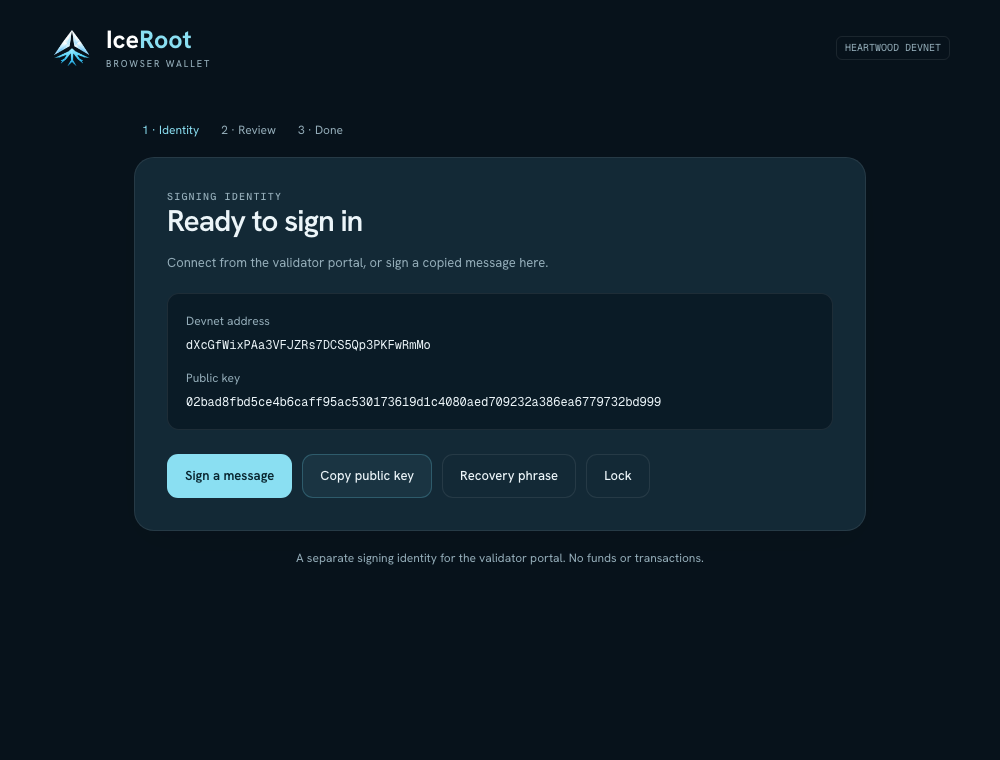
The public key identifies the account. This example uses a disposable devnet identity.
Your recovery phrase and wallet password stay in the wallet. The portal never needs either one.
With the browser extension
Section titled “With the browser extension”- Choose Sign in in the validator portal.
- Select Browser wallet, then Connect browser wallet.
- Review and approve the connection in the wallet tab.
- Choose Sign in wallet in the portal.
- Check the website, identity, network, and complete message in the wallet, then select Sign message.
The portal verifies the signature and opens your validator space.
Sign manually
Section titled “Sign manually”- Choose Sign manually in the portal.
- Paste your identity’s public key and select Get sign-in message.
- In the wallet, choose Sign a message, paste the exact message, and select Review message.
- Check the website and message, then choose Sign message.
- Copy the public signature JSON back to the portal and select Verify and sign in.
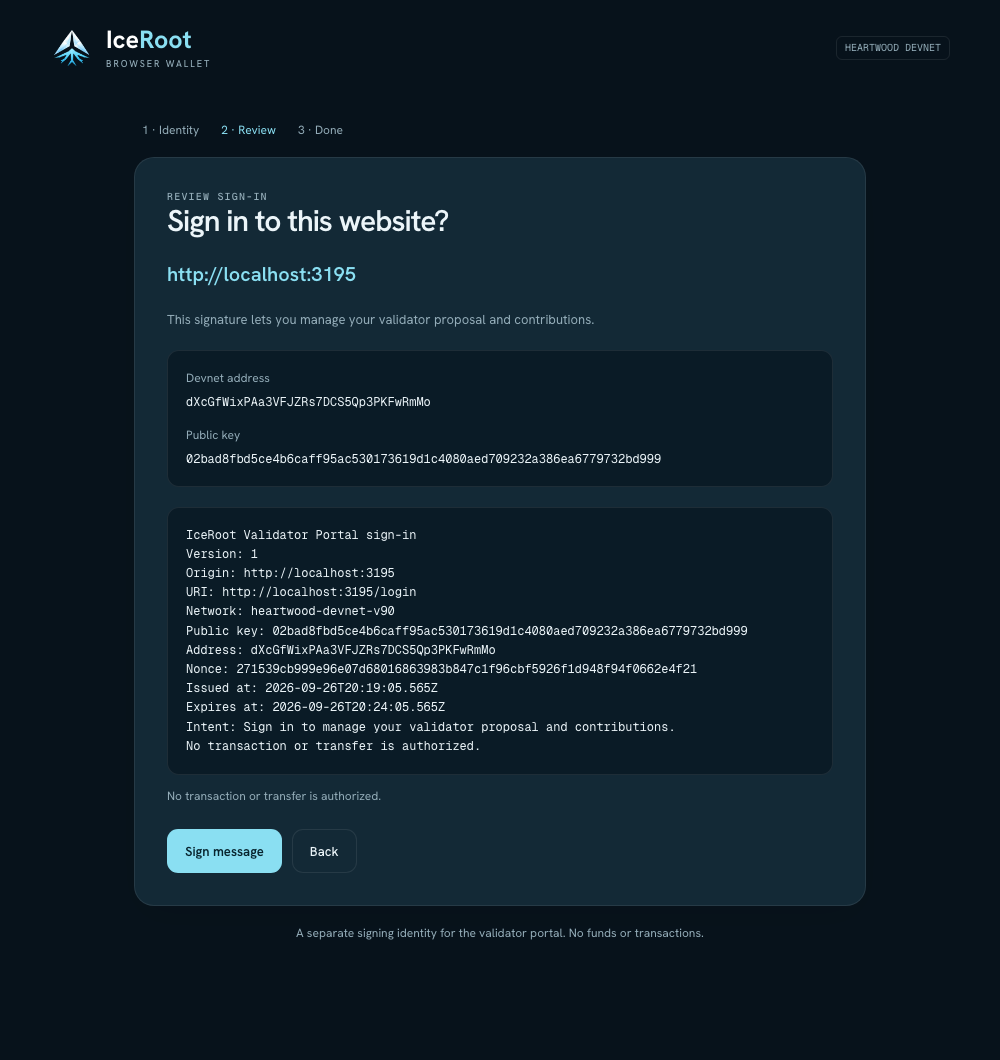
Review the full message inside the wallet. This example targets a local development portal and authorizes no transaction.
Do not edit the copied message. Each message is tied to the portal, browser session, account, and expiry.
If the message expires
Section titled “If the message expires”Request a new message and sign it again. An old signature cannot approve the new message. Rejecting a request does not grant access.
Developers can read the wallet provider guide for the integration contract.